
- Start with your work, not the price
- The CPU is the first choice that matters
- The GPU comes with the CPU, so don’t overthink it
- RAM is one of the few choices you can’t fix later
- Storage is fast, but the smartest move is often external
- Display, speakers, keyboard, and everyday feel are already strong
- MacBook Air and MacBook Pro feel similar at first, but they are not the same
- A simple way to pick your MacBook without getting stuck
- The best MacBook is the one that matches your real workload
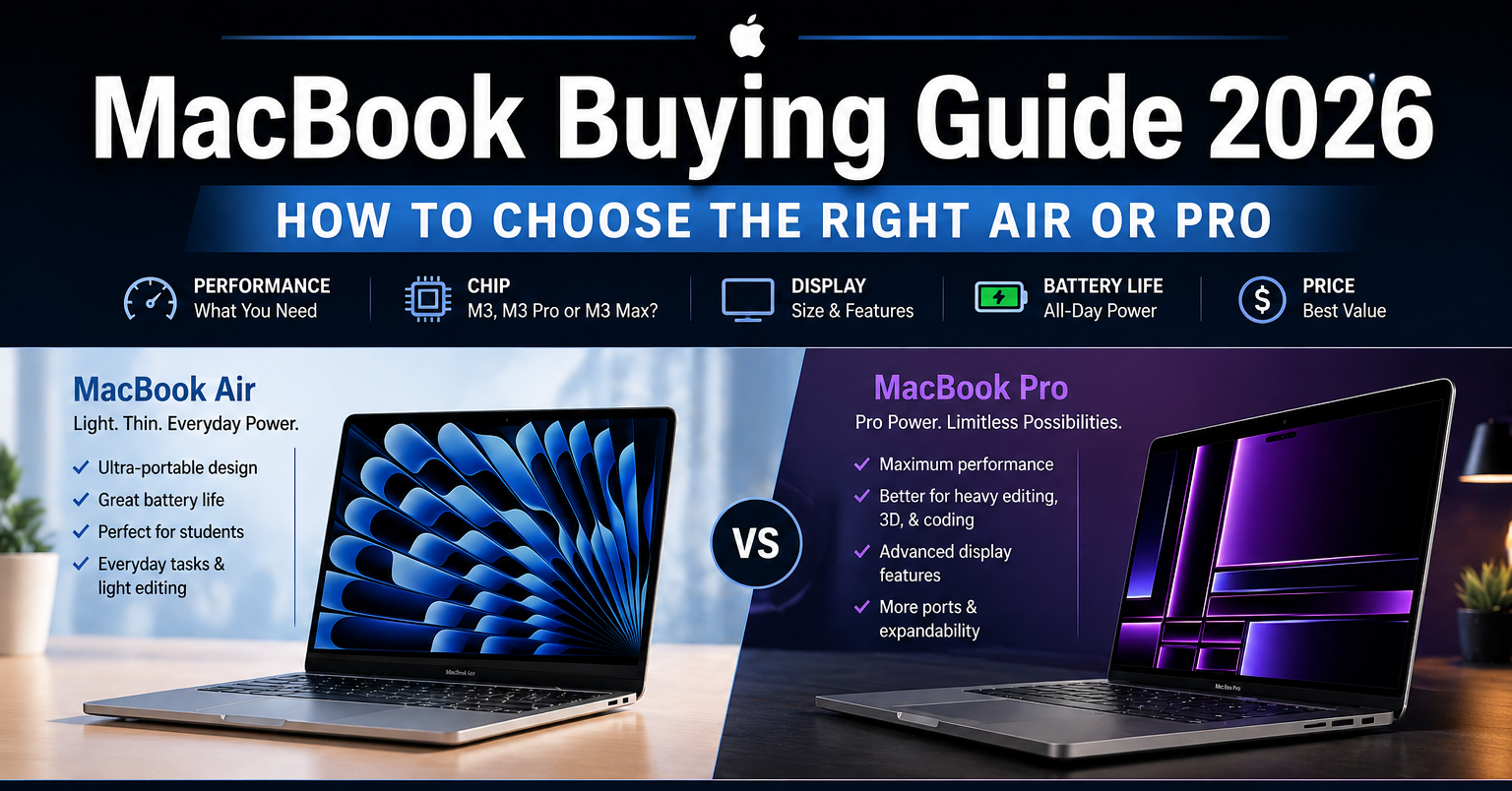
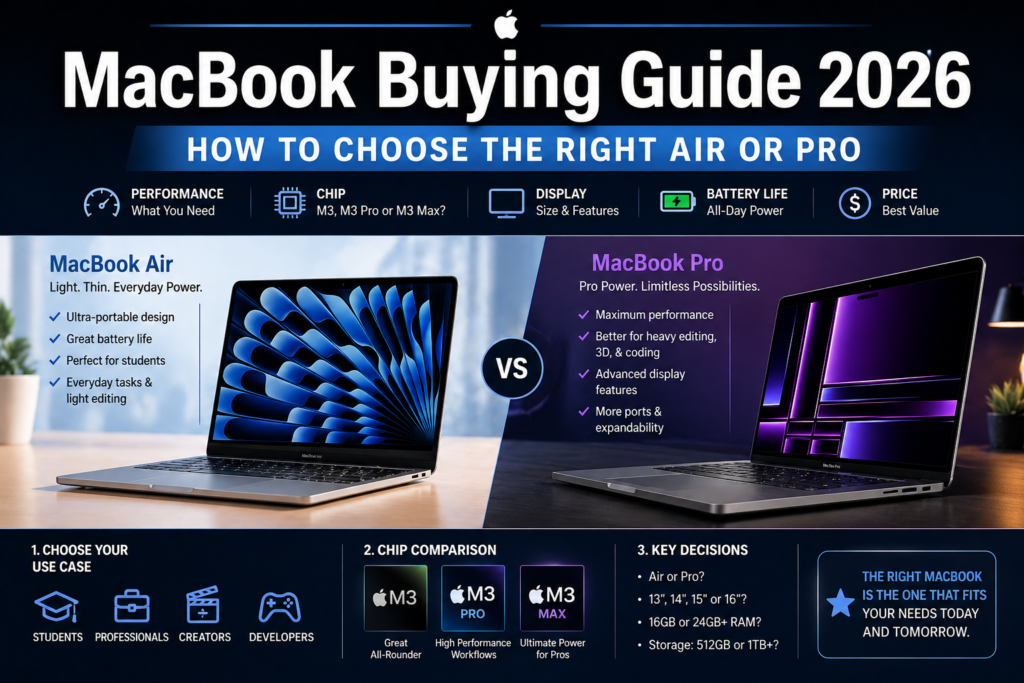
MacBook Buying Guide 2026: How to Choose the Right Air or Pro: Buying a MacBook is expensive. Buying the wrong MacBook is worse, because you can spend a lot of money and still end up with a machine that doesn’t fit your work.
That is the whole point of this guide. Don’t buy the wrong MacBook. If you match your workload to the right chip, RAM, size, and model, the decision gets much easier.
Start with your work, not the price
A funny way to say it is this: a MacBook makes you look rich, but the wrong MacBook makes you look careless. The smart move is to choose based on what you do every day, not on what sounds the most powerful.
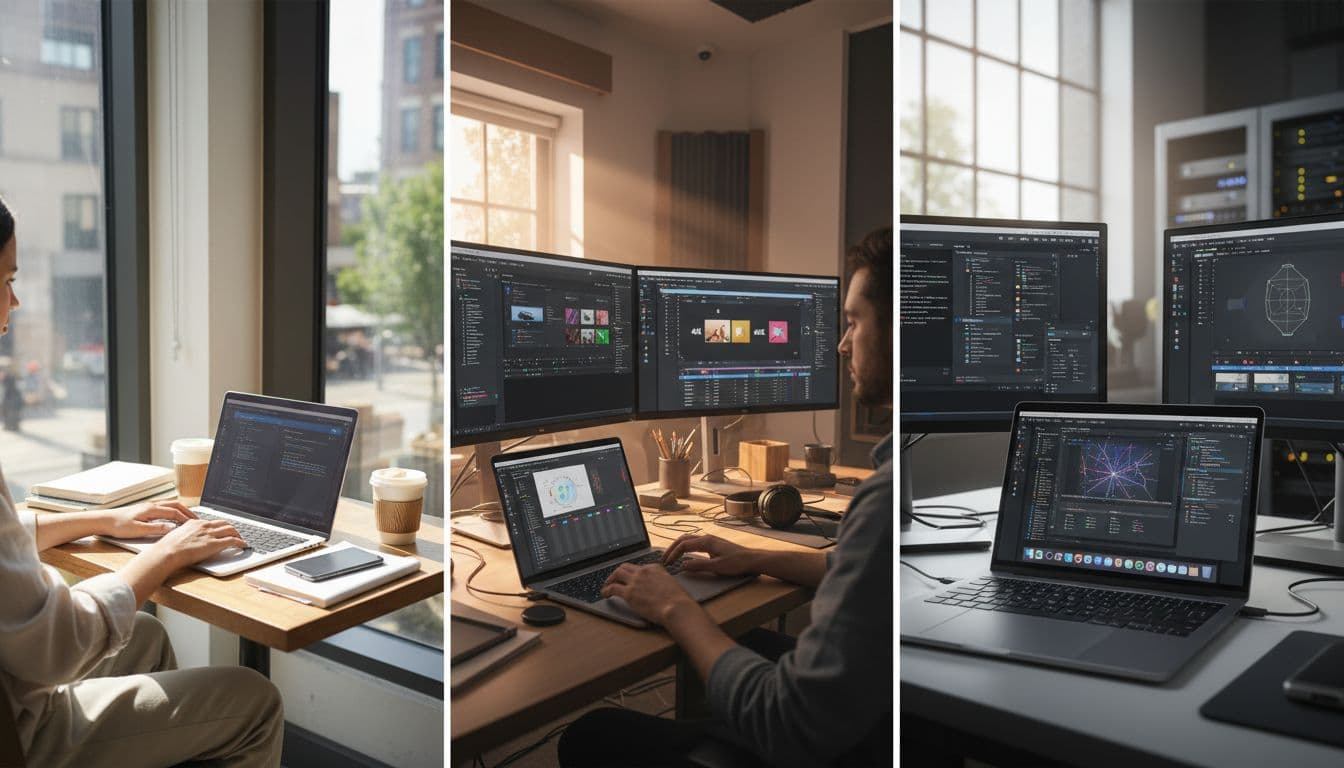
Most buyers fit into one of three groups. Once you know your group, the rest of the buying process gets much simpler.
Normal users need balance, not brute force
If your work includes studies, coding, Full HD video editing, graphic design, documents, analysis, and regular travel, you are in the normal-user category. This group needs a laptop that feels fast, lasts long on battery, stays light in a backpack, and still gives you a good display and webcam.
That usually points to the base Apple chips, such as M1, M2, M3, M4, or M5. For many people, this is the sweet spot. You get solid performance without paying extra for power you may never touch.
Models like the MacBook Air M1, MacBook Air M2, MacBook Air M3, MacBook Air M4 13-inch, and MacBook Air M4 15-inch sit in this lane.
Heavy users need a stronger CPU and more headroom
Heavy users push harder. This group includes people working on 4K or 6K video edits, motion graphics, some VFX, After Effects, ethical hacking, or several virtual machines at once. If you do heavy coding and heavy editing on the same machine, this is usually where you belong.
Here, CPU power matters more, and GPU performance starts to matter a lot, too. A base chip can still do a lot, but a Pro chip is the safer pick when your workload stays heavy for long stretches.
If that sounds like your use case, machines such as the MacBook Pro M3 Pro and MacBook Pro M4 Pro are closer to the mark.
Beast users need top-tier CPU and GPU performance
This is the high-end tier. Beast users work with movie edits, ProRes files, 8K footage, heavy VFX, Blender, 3D modeling, and local AI/ML model training. These buyers usually care less about perfect battery life and more about raw power and a bigger screen.
For this group, Max chips make the most sense. You need the strongest CPU and the strongest integrated GPU available in that chip family. That is where MacBook Pro models with Max chips come in.
Options in this lane include the MacBook Pro M2 Max, MacBook Pro M3 Max, and MacBook Pro M4 Max.
The CPU is the first choice that matters
If you get the CPU right, most other MacBook choices start falling into place. Apple silicon chip names begin with “M”, and the number after that tells you the generation, such as M1, M2, M3, M4, or M5.
The basic rule is simple. A higher generation number usually means better performance and better efficiency. So, among base chips, M5 is ahead of M4, M4 is ahead of M3, and so on.
Apple then adds tiers inside a generation. That is where Base, Pro, and Max come in.
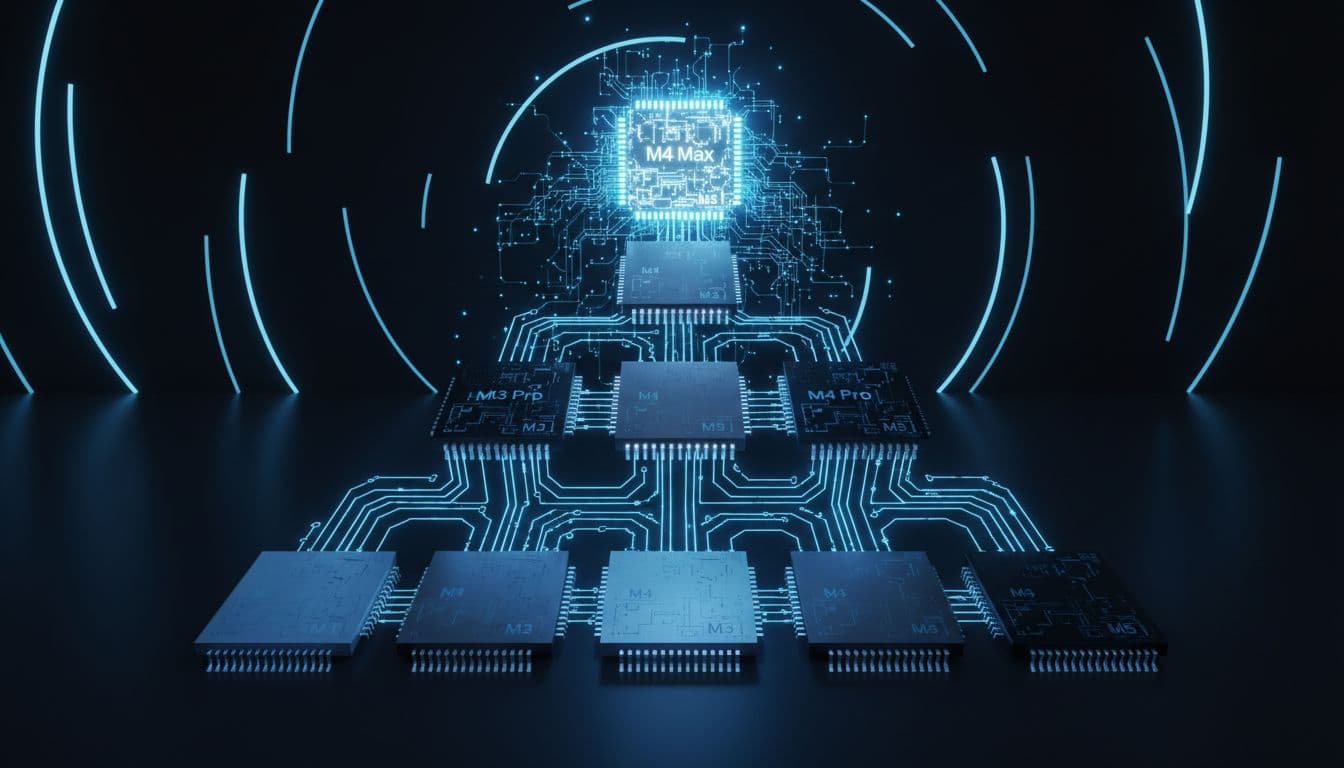
Here is the simplest way to read the lineup:
| Chip tier | What it means | Best fit |
|---|---|---|
| Base chip, such as M1 to M5 | Standard version of the chip family | Normal users |
| Pro chip, such as M4 Pro | More performance than the base version | Heavy users |
| Max chip, such as M4 Max | The highest-performance version in that generation | Beast users |
A base M4 is below an M4 Pro, and an M4 Pro is below an M4 Max. That pattern holds across each chip family. Based on the information shared here, M5 Pro and M5 Max were not available yet, while base M5 models were already in the market.
Core counts explain why prices rise fast
A clear example comes from the M4 family. The base M4 has a 10-core CPU. The M4 Pro ranges from 12 to 14 cores, and the M4 Max ranges from 14 to 16 cores.
| Chip | CPU cores |
|---|---|
| M4 | 10 |
| M4 Pro | 12 to 14 |
| M4 Max | 14 to 16 |
That range matters because Apple gives you more than one configuration inside some chip tiers. More cores usually mean more performance, and they also mean a higher price.
So, if your work is light to moderate, a base chip keeps things sensible. If your work is sustained and demanding, Pro makes more sense. If your work is extreme, Max is the right lane.
Chip choice also affects screen size options
Base chips appear across more mainstream MacBook sizes. You can find them in 13-inch Air models, 15-inch Air models, and also in some 14-inch MacBook Pro models, such as the MacBook Pro M5.
Pro and Max chips are limited to the 14-inch and 16-inch MacBook Pro lines. So, if you already know you need M4 Pro or M4 Max power, you are also choosing a Pro chassis and a larger, more premium machine.
The GPU comes with the CPU, so don’t overthink it
Every MacBook in this guide uses an integrated GPU. In plain English, that means the GPU is tied to the chip you choose. You don’t separately pick a graphics card the way you might on some Windows laptops.
That makes buying easier. A stronger CPU tier brings a stronger GPU tier with it.
| Chip example | GPU cores |
|---|---|
| M4 | 8 to 10 |
| M4 Pro | 16 to 20 |
| M4 Max | 32 to 40 |
For normal users, the base GPU is enough for day-to-day work, coding, media, and lighter creative tasks. Heavy users benefit from the Pro-level GPU, especially when motion graphics, effects work, or multi-app workflows are involved.
The Max-level GPU is where things get serious. It is the right fit for heavy VFX, 3D work, and local AI/ML tasks. If your projects are large and visual, this is the tier that gives you the most breathing room.
Stronger CPU = stronger GPU on a MacBook. Pick the right chip family first, and the graphics side usually sorts itself out.
RAM is one of the few choices you can’t fix later
MacBook RAM is soldered to the board. That means you cannot upgrade it after purchase. If you buy too little, you live with it. Because of that, RAM deserves more thought than storage.
The RAM type also changes across generations. Apple uses LPDDR memory, and the versions mentioned here range from LPDDR4X to LPDDR5X. The simple rule still holds: the higher the number, the higher the speed. Also, an “X” version is better than the non-X version in the same family.
| RAM type | Relative speed |
|---|---|
| LPDDR4X | Older and slower |
| LPDDR5 | Faster |
| LPDDR5X | Fastest among the versions listed here |
The M4 family again makes a good example of how Apple separates tiers by memory options:
| Chip | RAM options |
|---|---|
| M4 | 16GB to 32GB |
| M4 Pro | 24GB to 48GB |
| M4 Max | 36GB to 128GB |
That tells you a lot about intended use. Base chips target mainstream buyers—pro chips suit users who need more room for heavier apps. Max chips are built for people who run demanding creative or technical workloads and need a lot of memory.
When you order a MacBook, you can choose more RAM at the time of purchase. After that, the door closes.
Buy RAM for the next few years, not only for this month.
If your work is mostly browsing, documents, coding, studying, and light editing, a base-tier RAM option is fine. If you use After Effects, several virtual machines, large projects, or AI tools, stepping up in memory is money better spent than chasing storage upgrades.
Storage is fast, but the smartest move is often external
The exact SSD version used in these MacBooks was not spelled out here, but the performance was described as very fast. Read and write speeds feel quick in daily use, and that is one part of the MacBook experience most buyers enjoy right away.
The bigger question is whether to pay Apple to upgrade internal storage. The advice here is clear: keep the default SSD capacity if you can.
Apple’s storage upgrades can get expensive fast. For many buyers, it makes more sense to buy the MacBook with its default storage and add a good external SSD later. That often costs much less and gives you flexible extra space for projects, media, or archives.
If your budget is wide open and you want everything inside the laptop, then upgrading internal storage is still an option. For most people, though, external storage is the more sensible deal.
Display, speakers, keyboard, and everyday feel are already strong
MacBooks in this range come in 13-inch, 14-inch, 15-inch, and 16-inch sizes. Your chip choice affects what sizes you can buy, but the good news is that display quality is strong across the lineup.
The more expensive models, especially the 16-inch MacBook Pro, can give you a brighter and slightly better display. That matters if you edit a lot, work outdoors, or simply want the best screen in the lineup.
One feature called out here is the nano-texture display option. The advice was blunt: skip it. The main effect is a matte finish that reduces gloss, but it adds a lot to the price, around Rs 15,000 extra, according to the discussion.
A regular display plus a matte screen protector from the market can do a similar anti-glare job for far less money. So, if you are choosing between spending extra on nano-texture or putting that money into more RAM, the RAM is the better place to spend.
Outside the display, MacBooks are consistently strong in daily-use hardware. Speakers sound good, keyboards are solid, and trackpads remain among the best parts of the experience. That means even a lower-tier MacBook often feels premium in regular use.
If you want a portable, everyday machine with a larger screen, the MacBook Air M4 15-inch is one of the most obvious options in this category.
MacBook Air and MacBook Pro feel similar at first, but they are not the same
This is one of the biggest buying questions, and the answer comes down to how hard you push the machine.
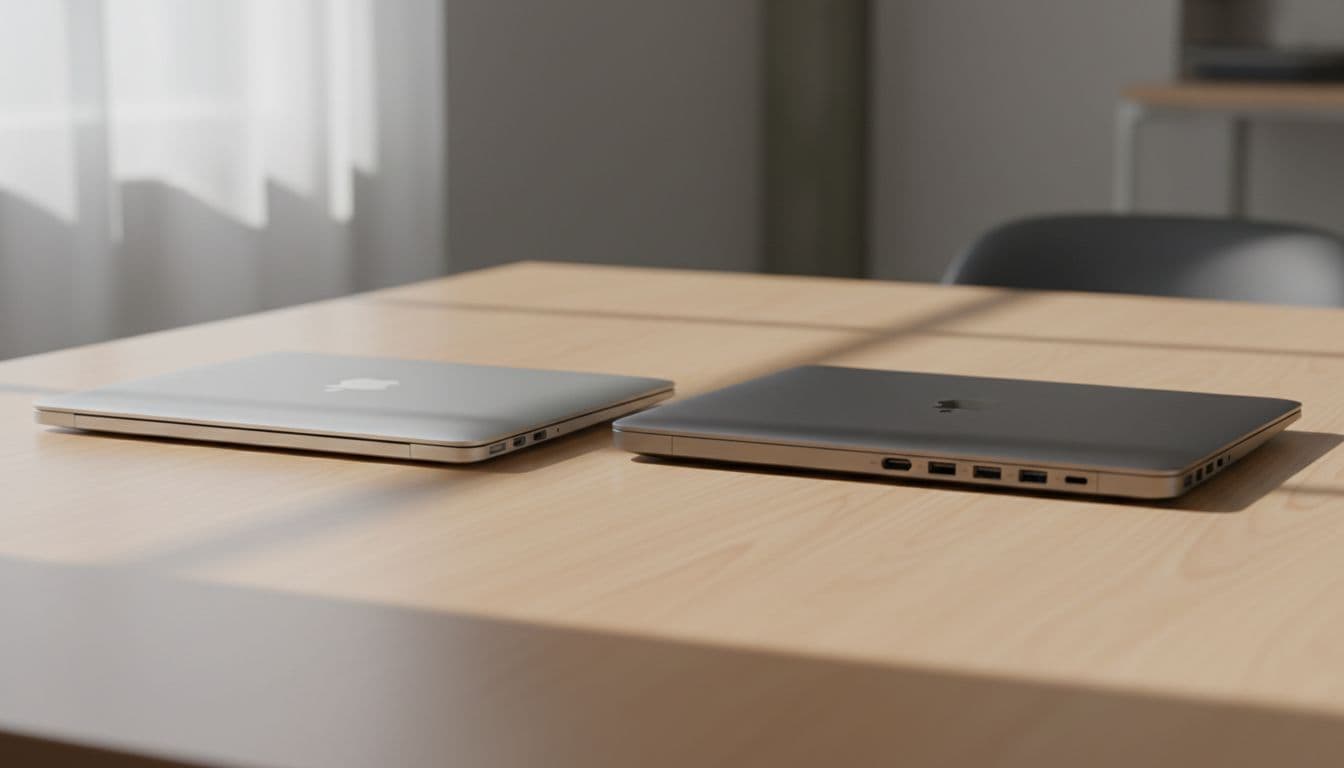
MacBook Air gives you the lighter, simpler, more mainstream experience. MacBook Pro gives you better sustained performance and a few quality upgrades around it.
Here is the comparison in plain terms:
| Feature | MacBook Air | MacBook Pro |
|---|---|---|
| Display brightness | Lower | Higher |
| Speaker loudness | Lower | Higher |
| Battery backup | Slightly less | Better |
| Fans | No | Yes |
| Chips available | Base chips only | Base, Pro, and Max chips |
The fan difference is the big one. MacBook Air models do not include fans, while MacBook Pro models do. That matters most when you push the laptop hard for long periods. For light work, you may never care. For heavy export jobs, effects work, or long coding sessions under load, it matters more.
Another major difference is chip choice. MacBook Air stays with base chips only. MacBook Pro gives you base-chip models too, but it also opens the door to Pro and Max chips.
So, if you are a student, office user, traveler, or general-purpose buyer, Air is usually enough. If your machine is part of your income and it runs heavy work often, Pro is the safer bet.
A simple way to pick your MacBook without getting stuck
A MacBook decision becomes much easier if you make four choices in order.
First, decide your user category. Be honest about your heaviest real work, not your occasional task.
Second, pick the chip tier. Base is for normal users, Pro is for heavy users, and Max is for beast users. Then choose the newest generation your budget allows.
Third, set your RAM at purchase time. Since you cannot upgrade later, this is the place to think ahead.
Fourth, leave storage at the default level unless your budget easily covers more. An external SSD is often the better value.
If you want model ideas by chip class, these are the cleanest starting points. Base-chip shoppers can compare the MacBook Air M1, MacBook Air M2, MacBook Air M3, MacBook Air M4 13-inch, MacBook Air M4 15-inch, and MacBook Pro M5. Pro-chip buyers can start with the MacBook Pro M3 Pro and MacBook Pro M4 Pro. Max-chip buyers can compare the MacBook Pro M2 Max, MacBook Pro M3 Max, and MacBook Pro M4 Max.
The best MacBook is the one that matches your real workload
The biggest mistake is not buying a “cheap” MacBook or an “expensive” MacBook. The biggest mistake is buying the wrong one for the way you work.
Start with your category, then choose the right chip, buy enough RAM, and avoid overspending on storage or nano-texture extras. That simple order removes most of the confusion.
A MacBook is too expensive for guesswork. Match the machine to the job, and the purchase makes sense for years.